WhatsApp export has no photos? Here is why, and how to export the chat with media
An exported WhatsApp chat is a text file, with the photos, videos and voice notes as separate files beside it, and only if you asked for them. If your export has no pictures, it was almost certainly made “Without media”. This page explains what each option includes, according to WhatsApp’s own help page, how to export the chat again with media on an iPhone or an Android phone, and what the result looks like as a dated PDF. Checked against WhatsApp’s help page on 1 November 2026.
Why the export has no photos
WhatsApp’s export help page describes the choices. On an iPhone: “If the chat contains media, choose With all media, With selected media…, or Without media.” On Android: “Tap Without media or Include media.” A chat exported without media is just the text: on Android a single .txt, on an iPhone a small .zip holding _chat.txt. Every message is there as text, and in the exports we have seen a short note such as “image omitted” or “Media omitted” stands where a photo was.
What each option includes
- iPhone, With all media: the chat as text plus the chat’s media (photos, videos, voice notes, documents) as separate files in one .zip.
- iPhone, With selected media: you pick which media files go in.
- Android, Include media: WhatsApp’s help says “the most recent media sent will be added as attachments”, so in a long chat older photos can be missing even with media included.
- Without media (both): text only.
- With any option, WhatsApp’s page says “View once and disappearing messages won’t be exported”, and an export cannot go back into WhatsApp: “Your chat history can’t be re-imported because it’s a text file and not a backup file.”
Export the chat again, with media
- iPhone: open the chat › tap the contact’s or group’s name at the top › scroll down › Export chat › With all media › Save to Files (or share it to your computer).
- Android: open the chat › ⋮ › More › Export chat › Include media › save it to your phone or Drive, or share it to your computer.
- You get a .zip (iPhone) or, on Android, a .txt plus the media files (sometimes a .zip). Keep them together: the photos are matched to the messages by their file names.
A new export is a new copy; it changes nothing in WhatsApp, and the exports you already have stay as they are.
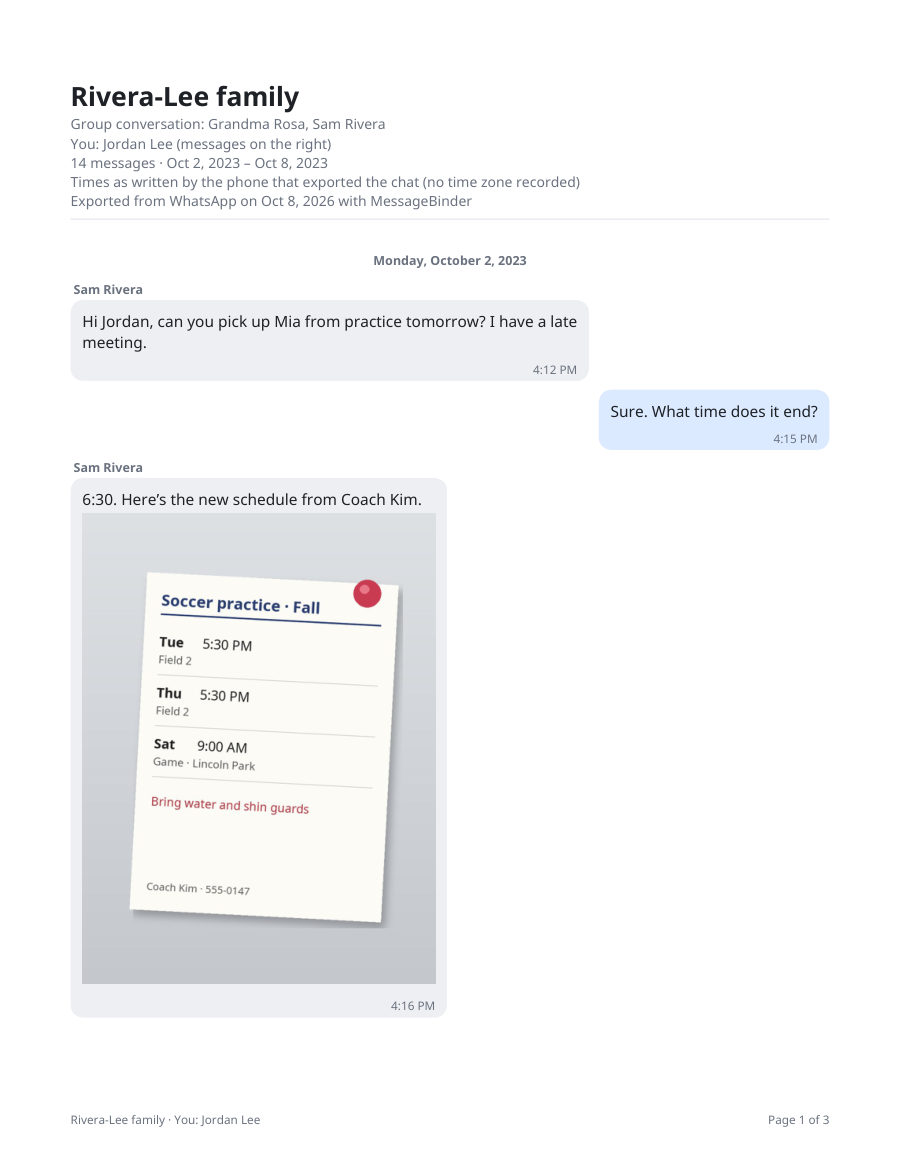
Read it with the photos in place (optional)
MessageBinder reads the export in your browser and makes one dated PDF per chat (long chats come in parts) with each photo next to the message it came with, plus a spreadsheet of every message and the original files. If a photo was not in the export, the PDF marks the place where it was; it cannot recover media that WhatsApp did not include. Nothing is uploaded: the page keeps working with Wi‑Fi off. The preview and a sample PDF are free; the full export is US$14.99 once. Just want to read it on screen? The WhatsApp chat viewer opens the same file, no PDF needed.
MessageBinder is a formatting tool: it changes nothing in WhatsApp and cannot add media that the export does not contain. It only formats the export you already have.
Not sure which tool to use? See three ways to save a WhatsApp chat as a PDF, compared.
If the photos are still missing
- On Android, “Include media” adds only the most recent media. That is WhatsApp’s design, not an export setting: the older photos may still be on the phone, in WhatsApp or the gallery, but they are not in the export.
- Photos you deleted from the chat, or that were never downloaded to the phone, are not in any export.
- Check that the media files are in the same folder as the .txt before you add them: if only the .txt was moved, the photos were left behind.
The first button opens the WhatsApp converter; add the .zip, or the .txt and its photos together, and the preview appears on that page. Nothing is uploaded.
Questions
Does “Without media” leave out anything other than photos?
Videos, voice notes, stickers, documents and GIFs are left out too: they are all media. The text of every message stays, with a note where each file was.
Why does my Android export have some photos but not the old ones?
WhatsApp’s help page says “Include media” adds the most recent media. Older photos are not added, even though they are still in the chat.
Can I add the photos to an old export later?
Not inside the old export. Export the chat again with media; the new export has the text and the files together.
Does MessageBinder recover missing photos?
No. It shows every photo that is in the export next to its message and marks the ones that are missing. Nothing is uploaded, and it cannot see what is not in the files.
Is the export the same as a WhatsApp backup?
No. A backup restores WhatsApp on a phone; an export is a readable copy. WhatsApp’s help says an export “can’t be re-imported”.
Sources
- WhatsApp Help Center: How to export your chat history (iPhone tab)
- WhatsApp Help Center: How to export your chat history (Android tab)
- WhatsApp Help Center: About view once
- WhatsApp Help Center: About disappearing messages
WhatsApp’s help page checked on 1 November 2026. It changes; the linked page is the authority, not this one. WhatsApp is a trademark of WhatsApp LLC; MessageBinder is independent of WhatsApp and Meta.