Open your SMS Backup & Restore file and read your texts on screen.
Add the sms-….xml file from SMS Backup & Restore and read every conversation here, with the MMS photos, on a computer or the phone.
- Nothing uploaded
- Free to read · PDF US$14.99 once
- Computer or phone
Everything happens in your browser: load the page, turn off Wi‑Fi, and it still works. See a finished PDF. (opens in a new tab)
Step 1 · Add your file
Where is the file? How to find it
- 1On the phone: open Files (or My Files on a Samsung) › Internal storage › SMSBackupRestoreThe file is named sms- plus the date and time of the backup, ending in .xml. If the app was set to upload to Google Drive, Dropbox or OneDrive, the file is in that drive too, in a folder with the same name.
- 2On a computer: download it from the drive, or copy it over the cableFrom drive.google.com › SMSBackupRestore, download the sms-….xml file. Or plug the phone in and copy the file out of its SMSBackupRestore folder. Then open this page on the computer.
- 3Tap Choose file and pick the sms-….xml file, and calls-….xml too if you backed up calls. Backups from several days can go in together; a message found in more than one is shown once.
- 4Tap a conversation and read itConversations are listed by the name the phone had for each number, with the message count and dates. Each one reads as bubbles with the MMS photos, the date and the time; every message is free to read. Pay once to keep them as dated PDFs.
The backup file comes from SMS Backup & Restore, an app by SyncTech that is not related to MessageBinder. Nothing here touches the phone’s own messages: the page reads the file you pick and nothing else.
- Done: 1 · Added
- 2 · Choose
- 3 · Download
Working… please keep this tab open and in front until it finishes.
Checkout opens in a new tab. After paying, come back to this tab and paste the key from your email.
Already paid? Enter your license key
Finish your purchase
-
PaymentIn the other tab
When the checkout page says Successful, your payment is done. You can close that tab. This page can’t see your payment: the license key in your email is the proof.
-
UnlockWaiting for your key
Dodo Payments emails your license key within a few minutes, from noreply@dodopayments.com, subject “Your MessageBinder – Full Export license key from MessageBinder”. Check Spam or Promotions.
✓ Unlocked on this device
-
Your file
No email after 10 minutes? Check Spam for “Dodo Payments”, or email help@voicebinder.com from the address you paid with.
Sample = the first 20 messages of each selected conversation (PDF and spreadsheet) and the first 5 calls, watermarked. Unlock = everything, one payment, all three tools.
Secure checkout by Dodo Payments. Sales tax, VAT or GST is added where it applies. Your license key arrives by email within a few minutes of paying (check spam). Works or your money back (30 days).
What you get
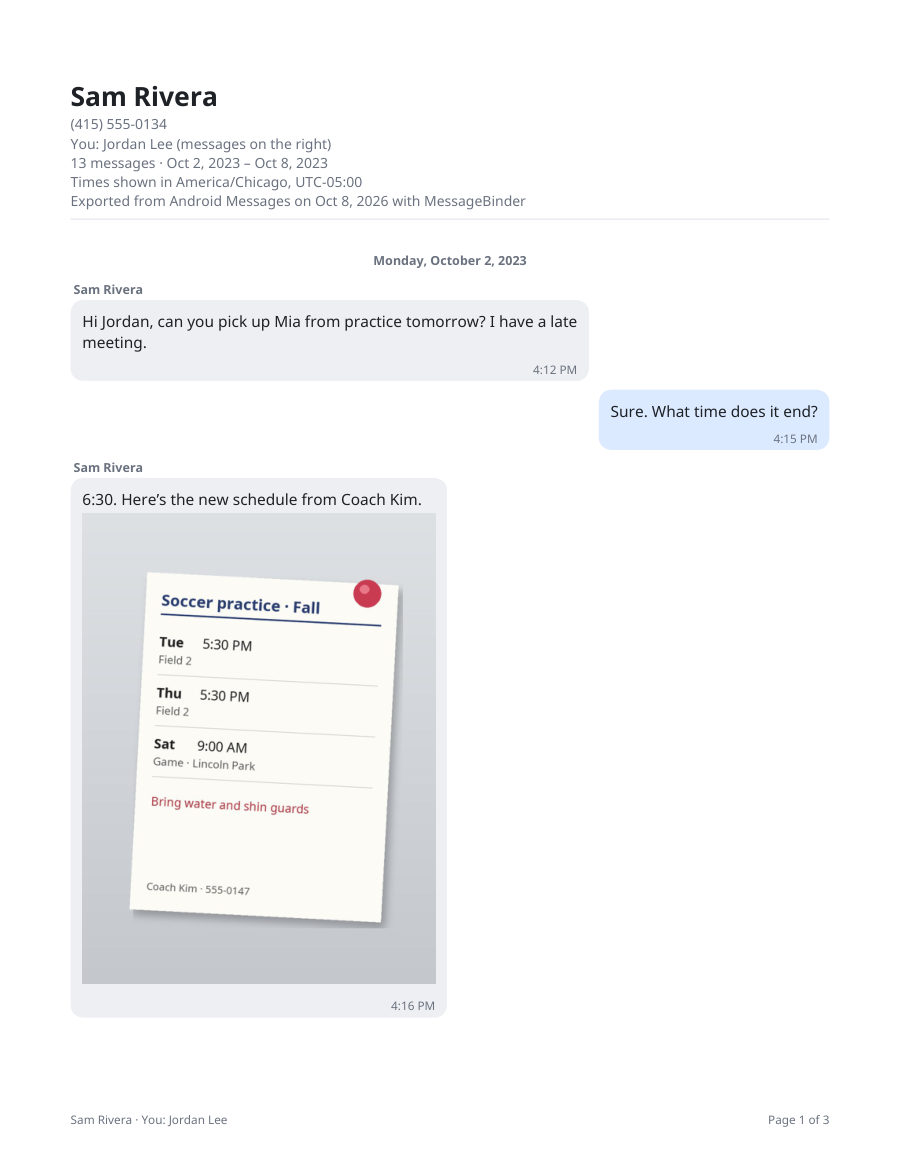 Page 1 of a finished PDF (made-up messages). Your free sample looks the same, with a SAMPLE watermark.
A page of a finished PDF, made from a made-up SMS Backup & Restore file.
- Each text in order, with the date above each day and the time on every message
- MMS photos in place
- One PDF per contact (long chats come in parts), with page numbers, plus a spreadsheet of messages and calls
- Spreadsheets: every message and every call, sortable.
- Your original files: photos, audio, documents.
Open a finished example PDF (opens in a new tab)
Use it to keep texts before changing phones, to turn a year of messages with one person into a dated document, or to read the backup file as conversations.
Pricing
- Read every conversation in full, on screen
- Photos, dates and times in place
- A sample PDF: the first 20 messages, watermarked
- No account, no email
- Every conversation as a dated, page-numbered PDF
- A spreadsheet of every message, plus the original files
- 5 devices · works or your money back (30 days)
- Sales tax, VAT or GST is added at checkout where it applies
Charged in US dollars. Payment and receipt by Dodo Payments, the payment company that also emails your license key.
Before you pay
- Made by Jin Kim, an independent developer. Questions and refunds: help@voicebinder.com.
- Your messages never leave your browser: load the page, turn off Wi‑Fi, and it still works.
- What is sent: your license key, to Dodo Payments’ license check, when you enter it; and an anonymous count of which step was reached, with nothing about your messages or your key.
- Checkout and receipt happen on Dodo Payments’ own secure page, in a new tab; your card details never reach this site.
- Works or your money back: if the full export doesn’t work for your files, email within 30 days of buying for a full refund (see Terms).
What exactly is sent and stored
- Made by Jin Kim, an independent developer. Questions and refunds: help@voicebinder.com.
- Your messages are read and turned into PDFs inside your browser. The message content, names, numbers and files are never sent anywhere: load the page, turn off Wi‑Fi, and it still works.
- What does leave your browser: when you enter a license key, the key and a short device label (for example “MessageBinder web (MacIntel)”) go only to Dodo Payments’ license service, which checks the key; later checks also send the activation number Dodo gave this browser. The page also tells this site which step was reached (opened, file added, preview, sample, unlock, back to this tab after opening the checkout, key accepted, export, and when a key is not accepted, only the kind of problem: empty, partial, not recognized, device limit, no longer active or no connection) as a plain count, with no identifier and nothing about your messages or your key (see Privacy). Nothing else is sent.
- Checkout opens on Dodo Payments’ own secure page, in a new tab. Dodo handles the payment and the receipt and emails you the license key. Your card details never reach this site, and your key and email address are never part of this site’s web addresses. The Paste button next to the key box reads your clipboard only when you tap it, only to put the key in the box, and sends nothing.
- This browser keeps your license key, its activation number and the time of the last check in its own storage so you don’t retype it, and for 30 days a note if a key was found no longer active. When you open the checkout, this tab also notes the time, so the steps to finish your purchase are ready if you come back within an hour; that note stays only in this tab and is removed once your key is accepted. Nothing else is stored.
- Works or your money back: if the full export doesn’t work for your files, email within 30 days of buying for a full refund (see Terms).
Find the backup file and read it
2 min · phone or computer- 1On the phone: open Files (or My Files on a Samsung) › Internal storage › SMSBackupRestoreThe file is named sms- plus the date and time of the backup, ending in .xml. If the app was set to upload to Google Drive, Dropbox or OneDrive, the file is in that drive too, in a folder with the same name.
- 2On a computer: download it from the drive, or copy it over the cableFrom drive.google.com › SMSBackupRestore, download the sms-….xml file. Or plug the phone in and copy the file out of its SMSBackupRestore folder. Then open this page on the computer.
- 3Tap Choose file and pick the sms-….xml file, and calls-….xml too if you backed up calls. Backups from several days can go in together; a message found in more than one is shown once.
- 4Tap a conversation and read itConversations are listed by the name the phone had for each number, with the message count and dates. Each one reads as bubbles with the MMS photos, the date and the time; every message is free to read. Pay once to keep them as dated PDFs.
The backup file comes from SMS Backup & Restore, an app by SyncTech that is not related to MessageBinder. Nothing here touches the phone’s own messages: the page reads the file you pick and nothing else.
Questions
What is MessageBinder?
MessageBinder is a web page that turns an SMS Backup & Restore XML file into dated PDFs with the photos in place, plus spreadsheets and the original attachments, entirely in your browser: nothing is uploaded. Reading every message on screen is free; the PDF export is US$14.99 once, with no subscription.
How do I open an sms-….xml file on a PC or Mac?
Add it on this page: Chrome, Edge, Firefox and Safari all work, with nothing to install. The .xml also opens in a browser or in Notepad on its own, but as a wall of tags, with the dates as long numbers and the photos as blocks of letters; here each conversation is listed by name and reads like the phone’s messaging app.
Why does the file look like code when I open it?
Because it is XML, a format meant for programs. Every message is wrapped in tags, the date is stored as a count of milliseconds since 1970, and an MMS photo is stored as text. The viewer turns those back into a conversation, a date and a picture.
Why not open the .xml and print it, or screenshot the app?
The .xml is thousands of lines of code, and a browser print of it is unreadable; screenshots have no searchable dates. MessageBinder turns the file into one PDF per contact (long chats come in parts) with dates, times, MMS photos and page numbers, plus a spreadsheet of messages and calls, right on the phone or on a computer. The free sample shows the result first.
Is my backup uploaded?
No. Your messages are read and turned into PDFs inside your browser; they are never uploaded. Once the page has loaded, you can turn off Wi‑Fi and it still works. The page only fetches its own files (the page, its code and fonts) and, if you bought a license, asks our payment company whether your key is valid: when you enter it and each time you open the page again. It also sends the anonymous step counts described under “Before you pay”.
Is reading really free? What costs money?
Reading is free: open the backup, list the conversations and read every message, MMS photos included, with no account and no email. Money changes hands only if you want them as files: one payment of US$14.99 gives a dated, page-numbered PDF per conversation, a spreadsheet of every message (and of the calls, if you add the calls file) and the photo files, on 5 devices.
The app has its own “View backups”. Why use this page?
SyncTech’s app can show a backup on the phone it is installed on. This page is for a computer, or for a phone where the app is gone, and needs nothing installed; and when you want to keep a conversation, the same page makes the dated PDF.
Are MMS photos and group texts shown?
Yes, when the backup included MMS (keep MMS and media on in the app). Photos appear in the bubbles, and a group text is listed as its own conversation with each sender’s name above their messages.
Some conversations show a number, not a name
The backup holds the names the phone had at the time; a number without a contact stays a number. Export your contacts as a .vcf file (Contacts app › Fix & manage › Export to file) and add it together with the backup, and the names are filled in.
Can I read the call log too?
Add calls-….xml with the backup and the calls are counted; they come in the full export as a spreadsheet (calls.csv) with the date, time, number and length of each, not as bubbles on screen.
Can I do this on the phone itself?
Yes. Open this page in Chrome on the Android phone, tap Choose file and pick the backup from the SMSBackupRestore folder. Reading works the same; a full export with many photos downloads in a few parts on a phone.
Does the viewer read the messages on my phone?
No. Android does not let a web page read messages, and this one does not try: it reads only the backup file you choose, after you choose it.
How do I make the backup file in the first place?
Install SMS Backup & Restore from Google Play, set up a backup with Messages on (and Phone calls, if you want them), and tap Back up now. The Android texts to PDF page has the five steps, and the guide to the backup file explains where it lands and what is inside.
What does the viewer cost?
Nothing to read: open the file, list the conversations and read every message with the MMS photos; no account, no email. The PDFs, the spreadsheet and the files are one payment of US$14.99, no subscription, which also covers iPhone texts, WhatsApp and Google Voice, on 5 devices. If the full export does not work for your files, email us within 30 days for a full refund.