How to print text messages from an Android phone (without screenshots)
Android has no “print this conversation” button, and screenshots lose the dates and take hours. The reliable way on any Android phone, Samsung included: back up your texts to a file with the free SMS Backup & Restore app, open that file in your browser, and print one dated PDF per conversation, photos included.
Step 1: back up your texts to a file (about 5 minutes)
- Install SMS Backup & Restore (free, by SyncTech) from Google Play; the app’s page links to the store.
- Open it, tap “Set up a backup”, keep Messages on (include MMS for the photos), and choose where to save: your phone, Google Drive or email.
- Tap “Back up now”. The app writes one file named like sms-20261107….xml.
Where that file is and how to get it to a computer: Where is my SMS Backup & Restore file?.
Step 2: open the file in your browser, free
Open the SMS Backup & Restore viewer in Chrome, Edge, Safari or Firefox and add the .xml file (and the folder of pictures, if the app saved them separately). Every conversation is listed by contact; open one and read it in order with dates and times. Nothing is uploaded; the file stays on your device.
Step 3: print or save as PDF
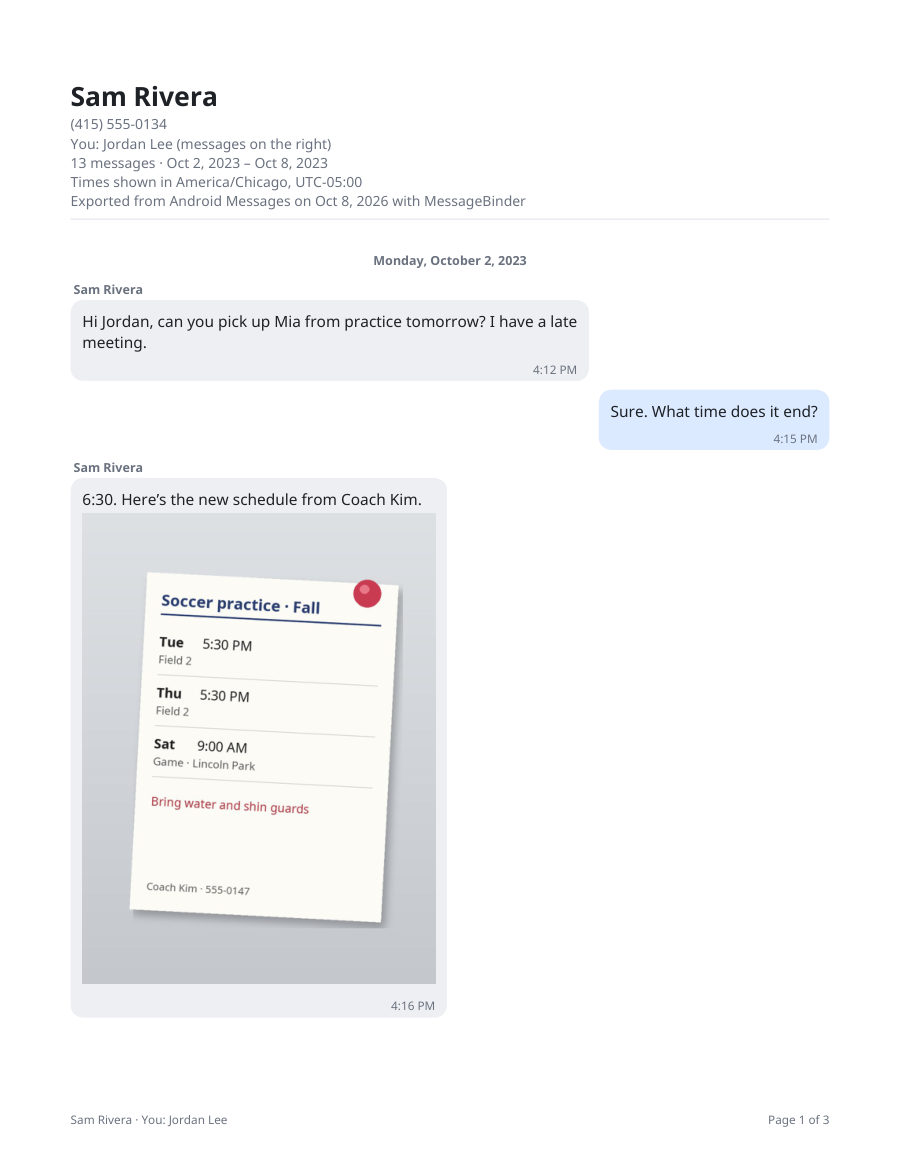
Tick the conversations you want and click “Save as PDF”: one PDF per conversation, every message with its date, time and sender, photos in place, plus a spreadsheet of all messages. Print the PDF or attach it to an email. One payment of US$14.99, no subscription, covers every conversation you add, on up to 5 devices, for every kind of export MessageBinder reads; the key arrives by email. The Android page shows each click.
Without a computer?
The viewer also works in the phone’s browser: back up to the phone, open the viewer in Chrome on the phone, add the file, and share the PDF with any printer app.
Why not screenshots?
Screenshots show no full dates, break a long conversation into dozens of images, and cannot be searched. A PDF built from the backup keeps every message, in order, with its exact time, and can be searched for a word or a date.
MessageBinder is a formatting tool: it reads the backup file the app already made and lays it out as dated PDFs, one per conversation. It does not change, add or remove messages; the backup itself is SyncTech’s app.
The first button opens the free viewer; add the sms-….xml file there (on the phone or a computer). Nothing is uploaded.
Questions
Does it work on Samsung?
Yes. SMS Backup & Restore works on every Android phone, and the backup file is the same.
Are MMS pictures included?
Yes, when the backup includes MMS: the viewer shows them in the conversation and the PDF places them where they were sent. A picture that is not in the backup (MMS left out, or deleted from the phone before the backup) cannot appear.
Can I print only one conversation?
Yes. Tick that conversation and save; each conversation is its own PDF.
Is my backup uploaded anywhere?
Your backup never leaves your browser. Two small things do: anonymous step counts (which page and which step, nothing about you or your file) and, when you enter a license key, the key and a device label sent to the payment provider’s license service to confirm the purchase. The privacy page lists both.
The backup is huge.
Large files work; reading starts in seconds on a recent computer. On an old phone, use a computer.
Sources
- SyncTech: SMS Backup & Restore (the app’s own page, with its Google Play links and the MMS option)
- SyncTech: SMS Backup & Restore FAQs (where the backup is stored, the MMS setting, the XML format)
- SyncTech: View backup files on computer (other options)
- SyncTech: the app maker’s own browser viewer for backup files
Facts checked against the linked SyncTech and Google Play pages on 7 November 2026. The app can change; the linked pages are the authority, not this one.