Where is my SMS Backup & Restore file, and how do I read it on a computer?
SMS Backup & Restore (by SyncTech) saves your text messages as an .xml file. Finding that file, moving it to a computer and reading it are three small, separate problems; this page answers each one, citing the app maker’s own help pages where it can. Checked on 1 November 2026.
Where the backup is saved
- By default, in the “SMSBackupRestore” folder of the phone’s main storage. The maker’s FAQ gives the usual path: /storage/emulated/0/SMSBackupRestore/.
- If you set the backup to upload to Google Drive, Dropbox or OneDrive as well, the file is in that drive too (in our tests, in a folder also named SMSBackupRestore). If you set it to the cloud only, the FAQ says the local copy sits in the app’s private storage and is deleted once the upload succeeds.
- In the backups we have seen, the messages file is named sms- followed by the date and time of the backup, ending .xml (for example sms-20240115120000.xml); the FAQ notes the date format is a setting. Call logs, if you backed them up, are a separate calls-….xml file.
Get the file onto a computer
- From the phone: in the app, use the “Send backup file” menu option (the FAQ’s wording) to email it to yourself or share it to a cloud drive.
- With a cable: connect the phone, open its storage on the computer and copy the SMSBackupRestore folder.
- From the cloud: open drive.google.com (or Dropbox or OneDrive) on the computer, open the SMSBackupRestore folder and download the sms-….xml file.
What is inside the file
It is XML: every message as text with its number, date and direction, and, if MMS backup was on, the pictures and, usually, group messages too, stored inside the same file. Opened in a browser or a text editor it is readable but not pleasant: one long list of tags. SyncTech’s product page says the XML “can also be viewed on a computer”, and its help page on viewing backups adds that “some processing is required to view the data in a user friendly format”.
Pictures are in the backup only if MMS backup is on: the maker’s FAQ says to turn it on under Menu › Settings › Backup Settings. A backup made with it off has the texts but not the pictures.
Read it as dated PDFs (optional)
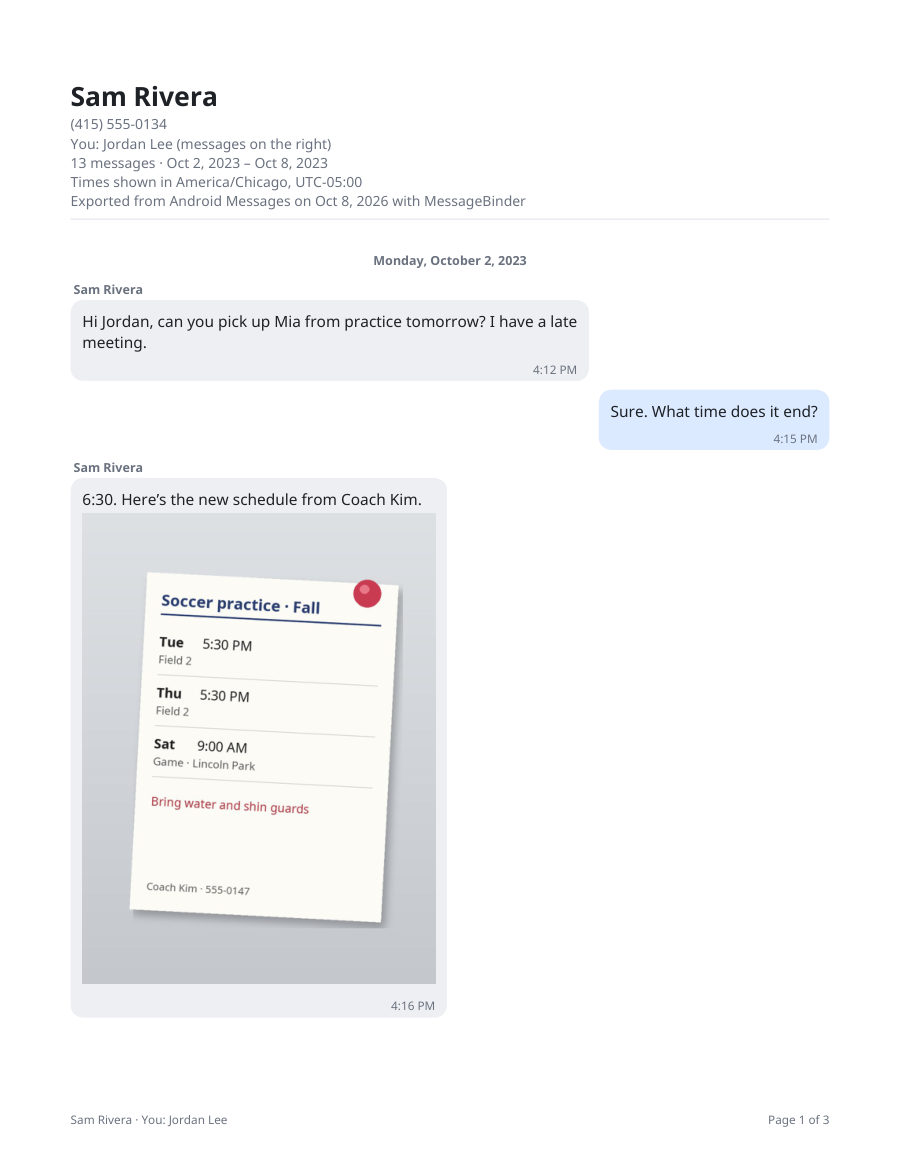
MessageBinder opens the .xml in your browser and makes one dated PDF per contact (long threads come in parts) with the pictures in place, plus a spreadsheet of every message, and a spreadsheet of calls if you add the calls file too. It also works on the phone itself: open the page on the phone and pick the file from the SMSBackupRestore folder. Nothing is uploaded: the page keeps working with Wi‑Fi off. The preview and a sample PDF are free; the full export is US$14.99 once. To read the backup on screen without printing anything, the SMS Backup & Restore viewer opens the same file.
MessageBinder is a formatting tool: it does not change your backup or the app’s settings, and it cannot add pictures that the backup does not contain.
Looking at it in the app instead
The app has its own viewer for backups on the phone: Menu › View Backups, per SyncTech’s help page.
The first button opens the Android converter; add the .xml there (on the phone or a computer) and the preview appears on that page. Nothing is uploaded.
Questions
I can’t find the SMSBackupRestore folder.
Open a file manager (Files or My Files), choose Internal storage (not the SD card unless you chose it), and look for SMSBackupRestore. If the backup was set to the cloud only, it is in that drive instead; the FAQ says the local copy is removed once the upload succeeds.
Why are my pictures not in the backup?
MMS backup is a setting (Menu › Settings › Backup Settings). Turn it on and make a new backup; older backups made with it off do not contain the pictures.
Can I open the .xml on an iPhone or a Mac?
Yes. MessageBinder runs in any modern browser; move the file to the device (cloud drive, cable or AirDrop from a computer) and add it on the Android page.
Does the backup include deleted messages?
No. A backup holds what was on the phone when it was made.
Is my backup uploaded when I use MessageBinder?
No. The file is read inside your browser. The page loads only its own files, asks this site for an anonymous count of which step was reached (nothing about your messages; see the privacy page), and, if you enter a license key, checks it with the payment company. You can turn Wi‑Fi off after the page loads and it still works.
Sources
- SyncTech: SMS Backup & Restore FAQs (where the backup is stored, accessing the files, the MMS setting, the XML format)
- SyncTech: View or edit backup files on a computer
- SyncTech: SMS Backup & Restore (cloud upload options, the MMS option)
SyncTech’s help pages checked on 1 November 2026. SMS Backup & Restore is a product of SyncTech Pty Ltd; MessageBinder is independent and not affiliated with it.